One concept, made clear
Take a single definition or technique and keep the example that makes it understandable without the rest of the lesson.
For Coaches & educators · PowerCut AI
Turn recorded lessons, workshops and Q&As into short educational videos. Share a useful answer, show your teaching style and invite the right people into the deeper lesson.
Free plan available. Features and usage limits vary by plan.

A compelling extract can lose its value when the explanation is cut too tightly. PowerCut AI helps you find a teaching moment and refine it around one learning objective. Keep the definition, the example or the essential step that lets a new viewer understand what you mean.
Example content plan
Choose moments that stand on their own. These are editorial starting points, shaped by your recording and audience.
Start with
A recorded lesson, workshop or group Q&A
Take a single definition or technique and keep the example that makes it understandable without the rest of the lesson.
Turn a recurring question into a concise answer. Add the context a first-time learner needs before the response.
Show an actual useful moment from the course or workshop. Invite viewers to the next lesson after delivering the takeaway.
From recording to ready
Start with a recording and a specific idea. Select a passage that can stand alone without skipping a necessary prerequisite.
Review the transcript, correct specialist terms and style captions. Keep diagrams and demonstrations visible in the frame.
Save and export the clip. Add the course or workshop destination in your publishing platform and keep the full lesson in your learning system.
The tools behind the workflow
Review the exact explanation and choose the passage you want to teach.
PowerCut AI featureMake terminology readable and give viewers text to follow.
PowerCut AI featureChoose fit or crop deliberately so important teaching visuals stay visible.
Inside PowerCut AI
Readable captions help your ideas travel with the clip. Choose a style preset, then refine the font size, spacing and colour to suit your footage. Check names and specialist terms before you export.
Explore auto captions ↗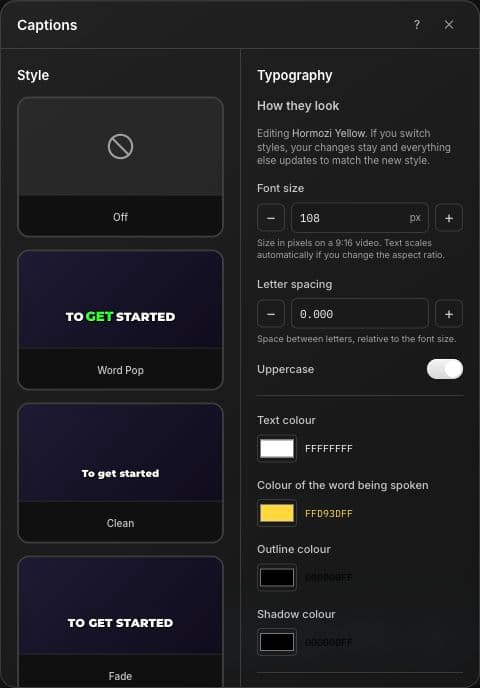
Before your next edit
This solution repurposes recorded teaching into short clips. It does not generate a course curriculum, host lessons or manage enrolments.
Yes, but review the composition carefully. A vertical crop can cut off slide text or a demonstration; use a layout that keeps the necessary detail visible.
Yes. Select a passage that demonstrates a useful idea and reflects the actual workshop. Add the next step in your publishing workflow.
These pages describe transcription and captions from your recorded speech, not automatic translation or dubbing. Check important terminology before export.
Explore another perspective
PowerCut AI for Coaches & educators