One useful takeaway
Lift a self-contained tip from a longer explanation. Start with the problem and keep the example that makes the advice useful.
For Content creators · PowerCut AI
You have already done the hard part: making something worth watching. Turn your long-form videos into short clips with a clear opening, readable captions and a look that feels like you.
Free plan available. Features and usage limits vary by plan.

Between planning, filming and publishing, a second edit can be the task that slips. PowerCut AI gives you candidate moments from your recording and a browser editor to finish them. Keep the joke, the useful tip or the unexpected answer—and give each clip enough context to work on its own.
Example content plan
Choose moments that stand on their own. These are editorial starting points, shaped by your recording and audience.
Start with
A tutorial, interview or talking-head video
Lift a self-contained tip from a longer explanation. Start with the problem and keep the example that makes the advice useful.
Share an honest reaction or a short story. Leave in the beats that make it feel like you, instead of trimming every pause.
Choose a moment that delivers value by itself, then add a relevant invitation to watch the longer conversation.
From recording to ready
Upload a video you know well and set the clip format. Spoken tutorials, interviews and explainers are a useful starting point.
Review the AI candidates, tighten the opening and check the transcript. Add a hook that matches the clip rather than promising a different story.
Set captions and framing, apply a saved brand kit and export an MP4. Review the file before uploading it to your chosen platform.
The tools behind the workflow
Inside PowerCut AI
Readable captions help your ideas travel with the clip. Choose a style preset, then refine the font size, spacing and colour to suit your footage. Check names and specialist terms before you export.
Explore auto captions ↗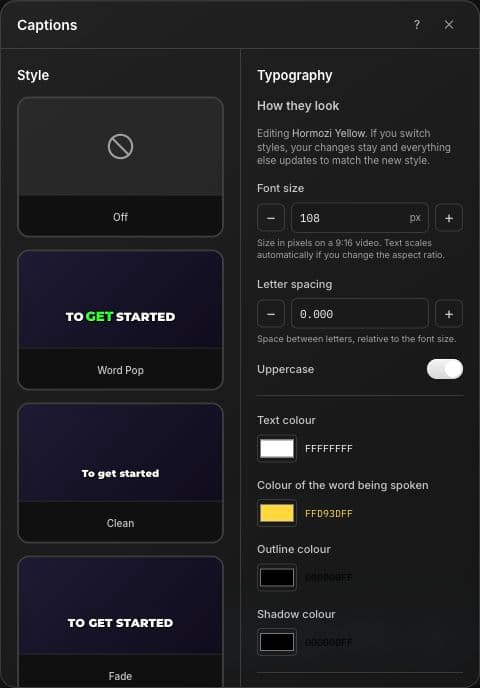
Before your next edit
You can upload your own source video and create short clips from it. Review the opening and vertical framing for each Short; use the original recording when you have it.
You can work from an uploaded recording of a livestream, especially a Q&A or spoken discussion. This workflow does not clip a live stream in real time.
No. Useful clip opportunities depend on the recording, its duration and the content. Choose quality and context over a fixed clip count.
A Free plan is available. Features and usage limits vary by plan, and clips created on Free retain their watermark. Check the current pricing before planning a larger series.
Explore another perspective
PowerCut AI for Content creators